Fore-edge relief tutorial: silhouettes, leaf measurements and cut profiles
Relief is not corner folding: it removes material from individual inner leaves to form a pattern across the book edge. This tutorial follows one H silhouette through setup, measurements and navigation. Images are real tool screenshots or schematics, not physically verified finished books.
Prepare artwork and a book
Start with a letter or a bold silhouette, not a complex photograph. Have a ruler, pencil, scrap paper and a suitable cutting mat available. Test the idea on scrap leaves before considering a book whose original contents need not be preserved. This tool provides geometry, not cutting-safety certification.
Measure an inner sheet, not the cover. Numbered pages 1 and 2 share one leaf; 3 and 4 share the next. A 400-page book supplies 200 complete leaves, excluding both covers. The planner starts at numbered page 1. Check the correspondence with your physical book if it has front matter, unnumbered sheets or unusual pagination.
Download the tutorial H silhouette PNG ↓

This download is input artwork, not a cutting template. It contains a black H, white background and vertical whitespace. Use this image and the settings below to reproduce the example intervals; typing H instead can give different measurements because font shapes and spacing differ.
The planning example used here
These values explain the interface; they are not physically tested cutting recommendations. Measure your own paper rather than copying the example book size.
| Field | Example | Meaning |
|---|---|---|
| Page width / height | 14 × 22 cm | Paper is 140 mm wide and 220 mm tall; covers excluded |
| Numbered pages | 400 | 200 complete inner leaves; an incomplete final pair is omitted |
| Surface effect | Convex | Retain black H and cut back the light background |
| Cut depth | 5 mm | Distance inward from the original edge, not distance down the page |
| Spine margin | 20 mm | Continuous strip to retain; not a binding-strength guarantee |
Five steps to generate and inspect
-
1. Choose input artwork
Open the planner, choose Image and upload the H PNG above. Text can also take words or initials. Images must be PNG or JPEG and smaller than 10 MB; export SVG artwork as PNG first. Transparent background is treated as blank. Color and gray are normalized to a binary silhouette, not gradient depths.
Empty white columns are cropped horizontally before distributing the artwork across leaves. Vertical whitespace remains and changes the height positions. The image thumbnail is the input, not a finished book. Check that the artwork has both dark and blank regions.
-
2. Decide whether to retain or remove the artwork
Convex keeps the dark artwork at the original edge and cuts back the light background. Concave cuts into the dark artwork and retains the background. Do not invert your image and then switch modes unintentionally: that can invert the intention twice.
The effect changes the generated removal mask, not just preview colors. There are only two levels: the original edge and one chosen inward depth. Gray is not a third depth.
Original input
A black H on white. Choose the effect after choosing the artwork.
Convex · keep artwork
H stays at the original edge; cut back the background.
Concave · cut artwork
Cut back H; the background stays at the original edge.
Retain the original edgeCut inward
Effect schematic, not a scale template or finished object. Relief crops side whitespace; top and bottom whitespace remains. -
3. Enter measurements and generate
For this example, enter 14 cm width, 22 cm height, 400 numbered pages, 5 mm cut depth and 20 mm spine margin. Select Generate cutting guide. Dimensions use cm while depth and margin use mm: 5 mm is not 5 cm.
Supported dimensions are 2–100 cm, with 2–4000 integer numbered pages. Cut depth is at least 1 mm and the retained strip at least 5 mm; depth plus margin cannot exceed width. These are geometric limits, not proof that a binding can withstand cutting. Changing artwork or settings invalidates the old preview and requires regeneration; it does not overwrite an already saved original.
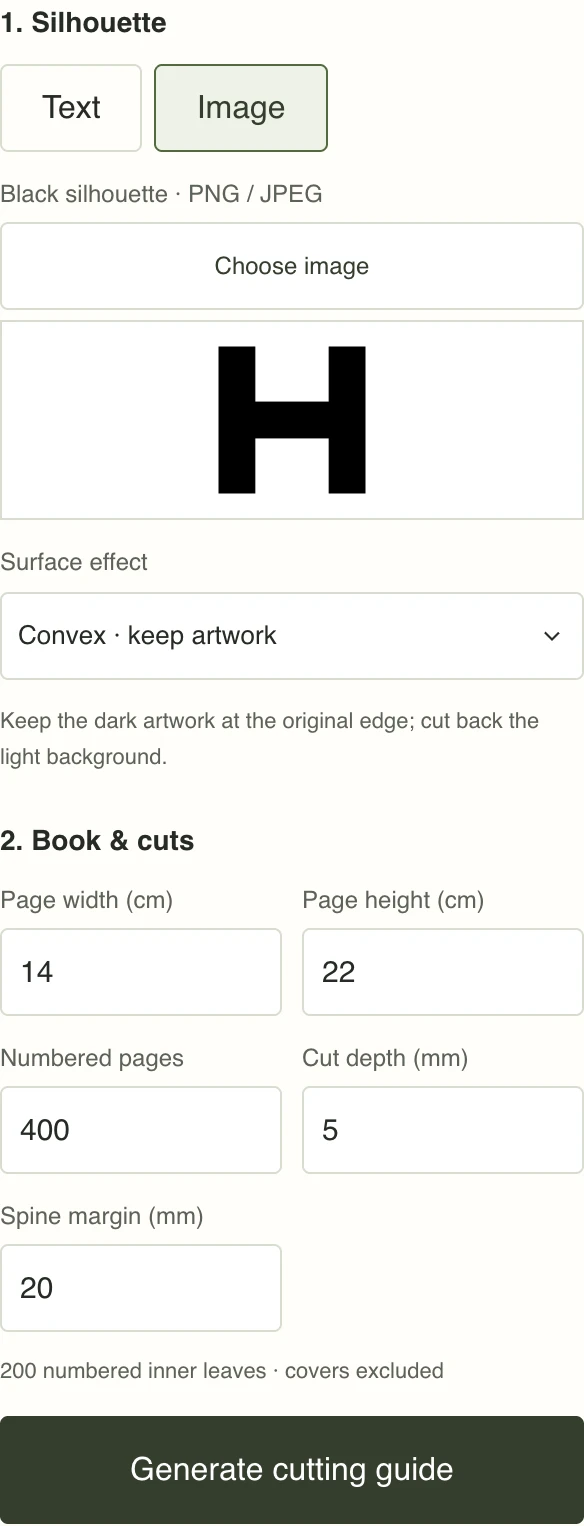
Actual settings screenshot: paper dimensions and cut parameters use different units. View full size ↗ -
4. Read the measurements for one leaf
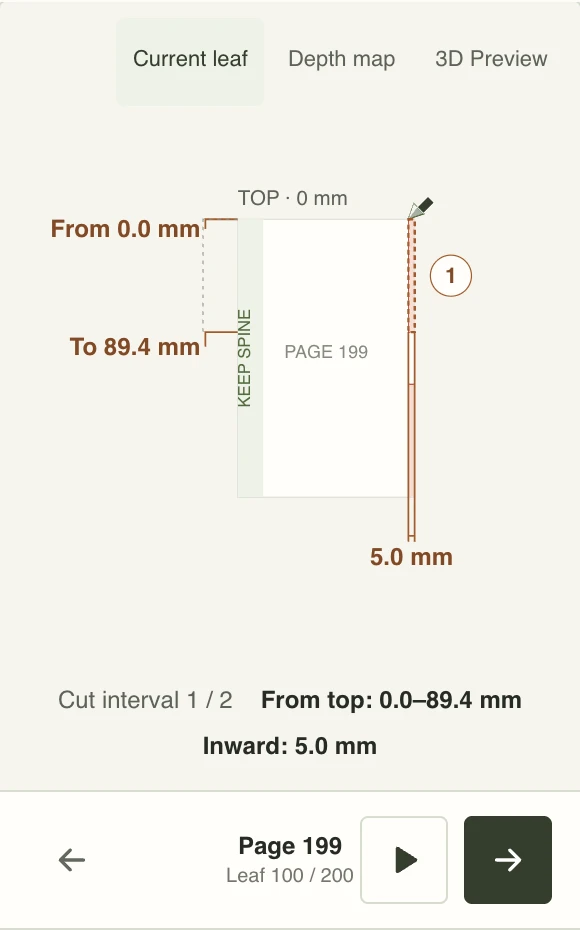
Current leaf is the default view. Olive marks the protected spine strip, red the outer cut profile, and pale red the material to remove. The copper dashed box and number identify the selected interval. Both heights on the left are measured from the original top; the number below is depth inward from the original edge.
The interval table is open by default. Select a row number to highlight that interval and return to Current leaf. This does not edit the profile or record physical completion. Play, Pause and Replay illustrate geometry removal; the blade is not a machine toolpath or instruction for handling a real knife.
-
5. Check the combined pattern and navigate
Depth map spreads leaf indices horizontally. Pale areas retain the original edge, dark areas are cut back, and copper marks the current leaf. It does not show true stack thickness. If the effect seems reversed, check whether the dark input should be retained or removed before attempting any cut.
3D Preview opens the book schematically by 60 degrees around its spines. Both covers stay intact; only inner leaves use cut profiles. Drag, zoom or reset the view. The assumed 0.10 mm paper thickness is not a measurement or simulation of binding forces. Previous and Next move one leaf. Select the central page button to jump to an odd front-facing numbered page: leaf 100 is page 199. On mobile, Edit design reopens the settings.
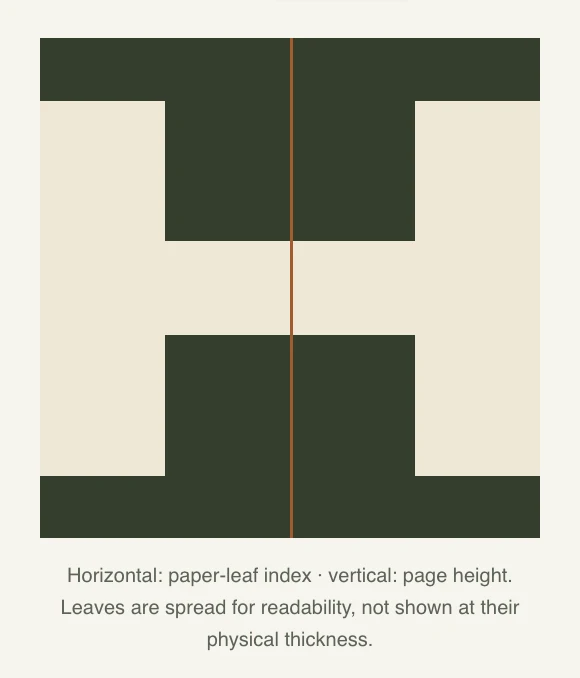
Use the depth map to check the combined silhouette and effect. Its horizontal axis is leaf index, not book thickness. View full size ↗ 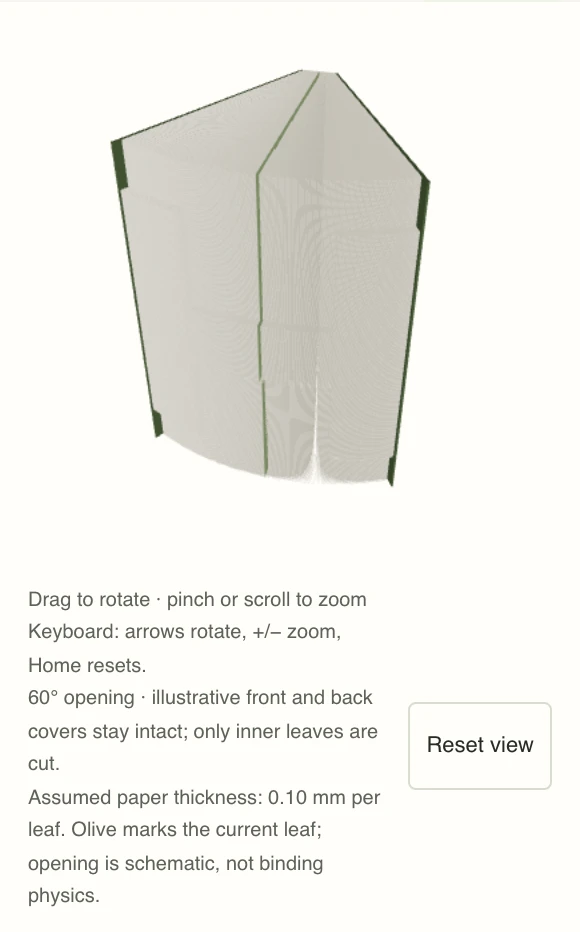
Actual 3D preview: schematic opening and assumed thickness, not a finished-book photograph. View full size ↗
Read the millimetres: page 199 worked example
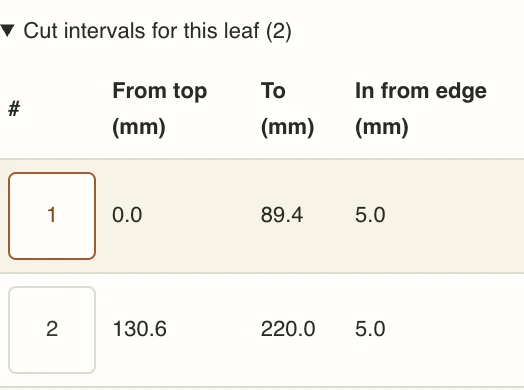
With the tutorial PNG and settings, select the central page button, enter 199 and jump. Pages 199 and 200 are the two faces of one sheet: handle that physical leaf once. This column intersects the H crossbar. Convex leaves the central original edge and cuts back background above and below it.
| Interval | From page top | To page top | In from original edge |
|---|---|---|---|
| 1 | 0.0 mm | 89.4 mm | 5.0 mm |
| 2 | 130.6 mm | 220.0 mm | 5.0 mm |
Interval one runs from the original top to 89.4 mm down the sheet, with 5.0 mm removed inward from the edge. Interval two runs from 130.6 mm down to the bottom at 220.0 mm, again 5.0 mm inward. The middle 89.4–130.6 mm region is not listed: retain its original edge.
Do not measure 130.6 mm from the previous mark or interpret 89.4 mm as inward depth. Heights and depths are perpendicular measurements. Other leaves can have different intervals; never apply this one table to the whole book.
Values come from the generated or restored original dimensions and profiles, displayed to 0.1 mm. Display precision is not design resolution or hand-cutting accuracy. A 22 cm sheet uses 256 vertical samples, roughly 0.86 mm apart. Check with a real ruler, not a measurement on your screen or a print of the screenshot.
Save, resume and back up
Save progress opts into local storage in this browser. Later navigation updates the last viewed leaf, not a claim that you completed a cut. My Projects resumes the original dimensions and profiles without resampling. Matching book settings alone do not identify a design; use the saved record to continue it.
Export a JSON backup from My Projects and import it into another browser’s library to transfer the design, original profiles and viewed position. The bookmark does not contain the complete data and does not sync it automatically. Back up before clearing browser data. The library supports at most 10 projects and is subject to browser storage limits.
JSON is a data backup, not a printable cutting template, CNC program or laser path. There is no per-leaf SVG download or relief PDF template. Both covers remain outside the cutting intervals.
Questions and physical limits
Why does a leaf have no cut intervals?
It can retain the original edge throughout. Follow Leave this leaf uncut, not the preceding leaf’s measurements. It is not a quarter-width folding spacer.
Why is only one set of dimensions drawn?
Only the selected interval is annotated to avoid crowding nearby boundaries. All intervals are listed in the open table. Select a number for its start, end and inward depth.
Why not upload a photograph and make a sculpture?
The algorithm reads dark and blank regions; it does not infer depth, texture or shadow. Prepare a clean bold silhouette and remove the busy background first.
Why are details missing, intervals excessive or generation rejected?
Limits are 2000 leaves, 256 vertical rows and 30000 total profile intervals. Fine lines can disappear and complex artwork can be rejected. Simplify rather than forcing settings to their limits.
Can I cut covers, the spine or enclosed holes?
No. This model removes material from inner outer edges while retaining a continuous connection to the spine. It does not support enclosed internal excavation, disconnected islands or machining a whole closed book.
Before physical work: test a few scrap leaves. Separate the working sheet from adjacent sheets with a suitable cutting mat, keep fingers away from the blade, and preserve the spine connection. Stop and simplify if the profile is impractical or the paper tears. The preview does not guarantee strength, safety or the finished appearance. This tutorial is not a physically validated fabrication procedure.